Dictate your intentions
Dictation turns your speech into text. Agent mode treats your speech as a request: tell Voice what you want written, and it uses the available context to help.
Reply from a conversation
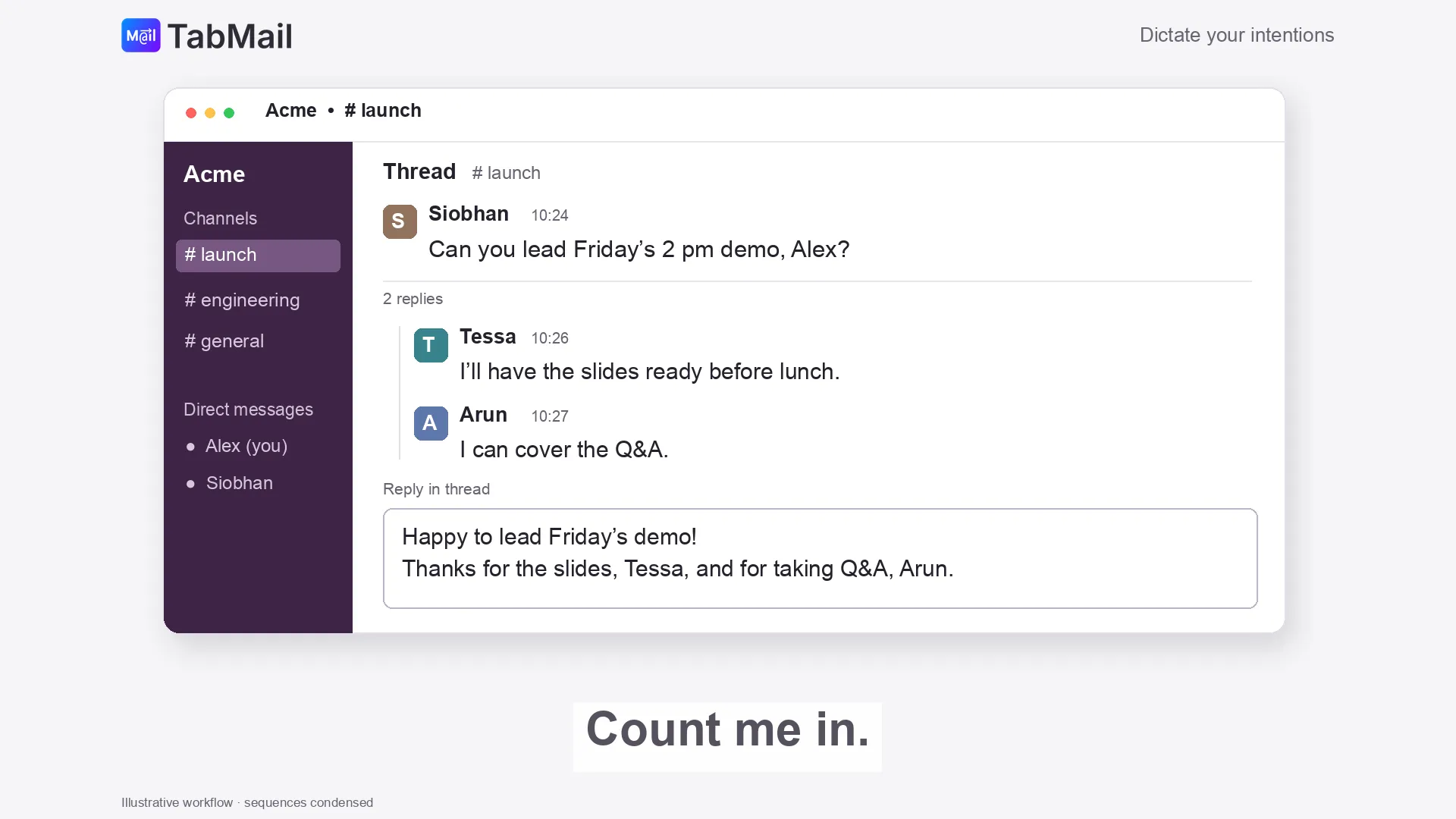
- Enable Read the screen while dictating and open the discussion or email you want to answer.
- Put the text cursor in its reply field, with no text selected.
- Hold your dictation key, press Space, and say “Count me in.”
- Release the key. Voice uses the visible discussion to compose the reply.
- Review the wording and recipient before sending.
You can press Space again during the hold to return to ordinary dictation.
Gather the details for a draft
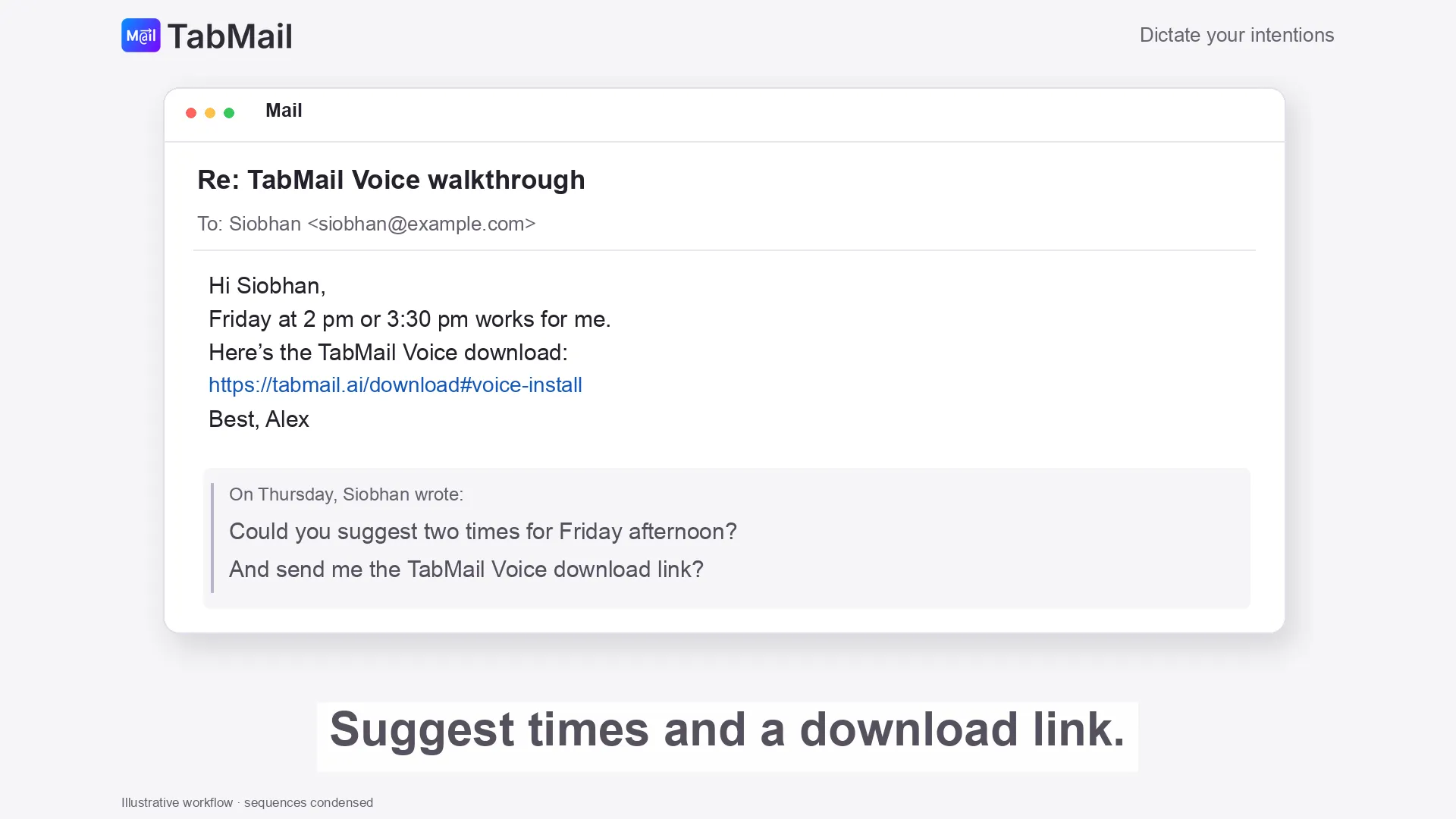
An email might ask for meeting times and the TabMail download link. Open its reply field with the original email quoted underneath, and put the cursor above the quote.
Use Answer with Calendar and Web enabled to gather the details: “Find two free times on Friday and the TabMail Voice download link.” Calendar access must be permitted. Then, with the reply field focused, use Compose: “Write that as a reply here.” Compose can use the open Answer conversation and inserts the text above the original email.
The demo condenses that research-to-writing handoff into an illustrative sequence. Current app builds require the separate Compose request for insertion into an existing field. Review the times, recipient, link, and wording before sending.
The Email connection is a separate option: it opens a new filled-in draft in your email app. Use Compose when you want to write in the reply already open.
If you name someone without an email address, the Contacts connection can look up their details. Availability depends on enabled connections, platform support, and permissions.
Edit selected text
Select text, hold your dictation key, press Space, and describe the change: “Make this shorter and friendlier.” Release the key and review the replacement.
With no text selected, Compose writes at the cursor. If you have an Answer conversation open, Compose can use that conversation too—for example, “Turn that into a short email here.”
Ask a question
Answer can also explain or summarize what is on screen in a chat window beside the app. Hold the key again while that window is open to ask a follow-up. Screen reading must be enabled for requests about the foreground window.
Tools and connections
Answer can gather information and call enabled connections. Compose writes at the cursor when no text is selected. Edit rewrites the selected text.
| Connection | What you can ask for |
|---|---|
| Calendar | Read events; add an event after confirmation |
| Reminders | Read reminders; add one after confirmation |
| Contacts | Find contact details; add a contact after confirmation |
| Files | Find indexed files or email messages; open a result |
| Notes | Ask about notes; add a note after confirmation |
| Messages | Send an iMessage after confirmation |
| Open a filled-in draft in your email app for you to review and send | |
| Web | Search the web, read pages, and open requested pages |
Enable only what you want in Settings → Agent mode. Review any confirmation, especially the recipient, destination, and date.
Give it useful context
Set your name in Settings so Voice can distinguish your messages from other people’s. Use Read the screen while dictating when you want text in the foreground window to help with names and context.
Next: Settings and privacy.
Last updated: October 5, 2026