Read & triage
Read with a little less work
Open a message to read the full email and its AI summary. Summaries help you spot requests and deadlines, but check the original message before acting on important details.
TabMail classifies messages as Reply, None, Archive, or Delete. These are suggestions about what to do next; review the message before applying an action.
Switch to triage
Use the mode toggle at the top right of the inbox, beside Compose, to switch between the normal list and triage. Triage puts the suggested actions in reach so you can work through messages quickly.
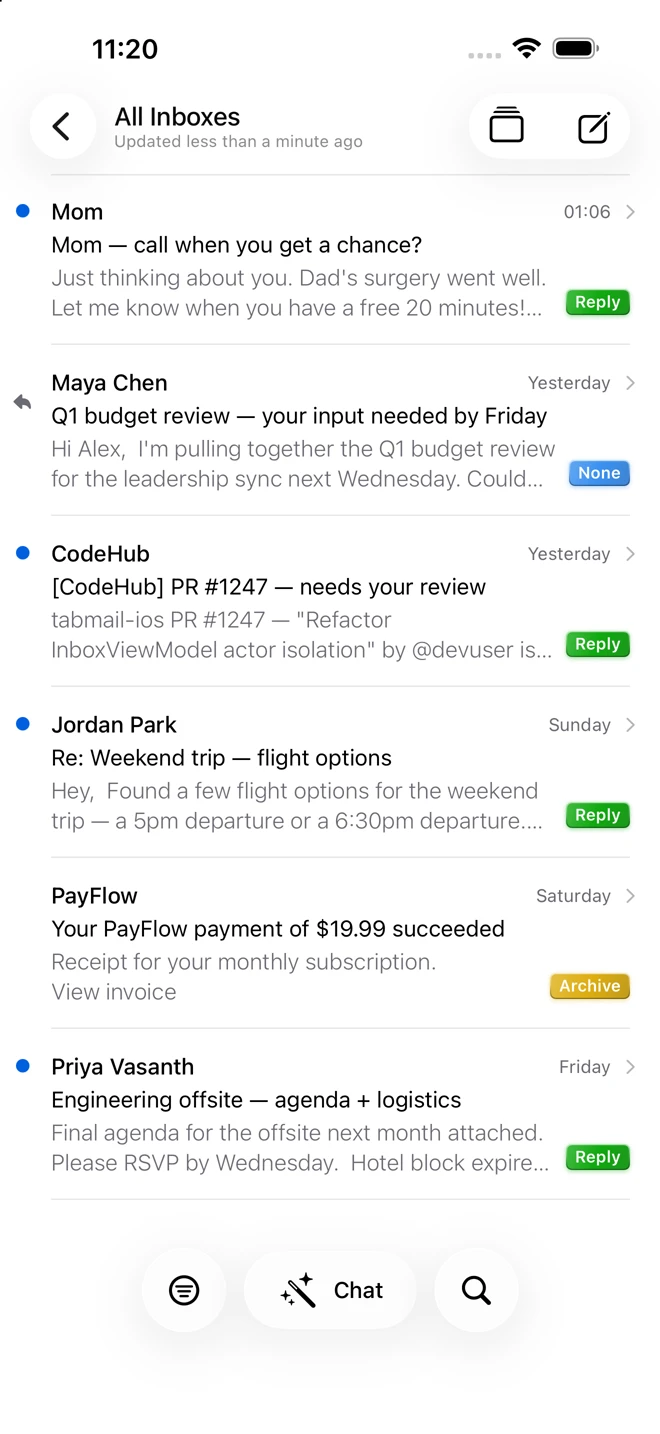
- Reply — Open the message and prepare a response.
- Archive — Clear a message from your inbox while keeping it in your mailbox.
- Delete — Move unwanted mail to Trash.
- None — Leave the decision to you.
Use Undo when offered after an inbox action if you change your mind.
Teach it how you work
In TabMail Settings → Action Classification, describe which messages you usually reply to, archive, or delete. In Knowledge Base, add context you want the assistant to consider.
Find an older message
Use search or ask the assistant for a message by topic, sender, or time. Search indexing happens on your device. An initial sync can take time to backfill older mail; check Email Accounts → Sync Status if recent mail is present but older results are missing.
Next: Chat and calendars.
Last updated: September 30, 2026